
Setting the Printout Finishing
Stapling paper ([Staple])
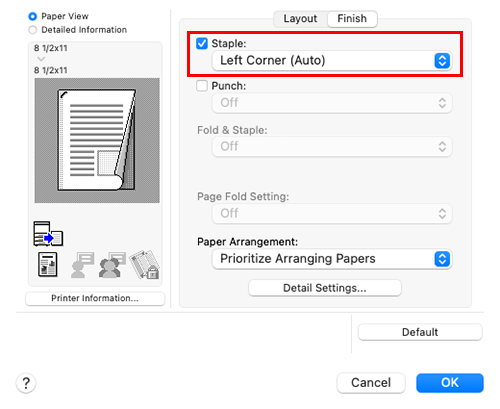
Each set of sheets can be stapled (at a corner or at two positions) and output automatically. This function is useful for preparing a project proposal or other booklet materials.

In [Layout / Finish] - [Finish], select the [Staple] check box. In addition, specify the number and positions of staples.

Tips
- To use this function, an option is required. For details on the required option, refer to "List of Functions with Options Required" in [User's Guide [About This Machine]].
- In [Binding Position] in [Layout / Finish] - [Layout], specify the staple position.
Punching the printed sheets ([Punch])
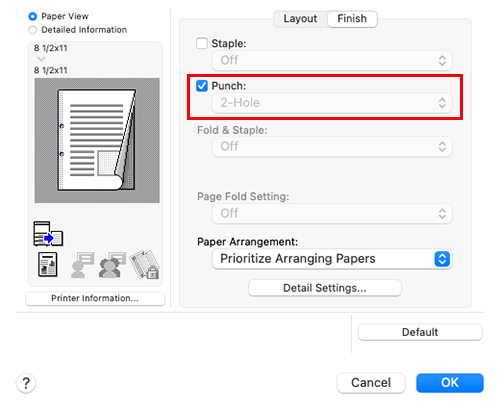
Printed sheets are punched for filing before they are output. This function is useful when you want to bind printed materials in files.

In [Layout / Finish] - [Finish], select the [Punch] check box. In addition, specify the number and positions of punch holes.
Tips
- To use this function, an option is required. For details on the required option, refer to "List of Functions with Options Required" in [User's Guide [About This Machine]].
- In [Binding Position] in [Layout / Finish] - [Layout], specify the punch position.
Printing in a booklet format ([Booklet])
The pages in the original data are arranged and spread out in booklet format and printed on both sides of sheets. When the printed sheets are stacked and folded in two, the pages are arranged in the correct order.
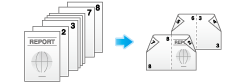
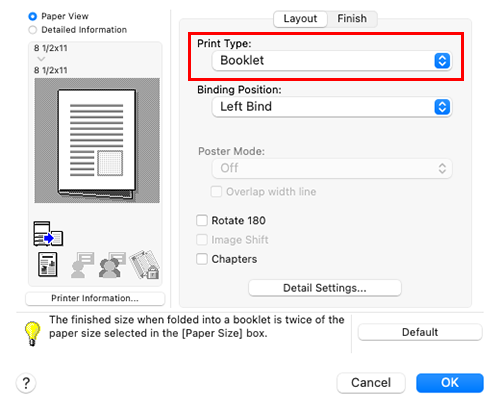
In [Print Type] of [Layout / Finish] - [Layout], select [Booklet].
Tips
- In [Paper Size], select the finishing size when paper is folded as a booklet.
- By selecting [Chapters] in [Layout / Finish] - [Layout] in combination with this function, you can place the specified page on the front side.
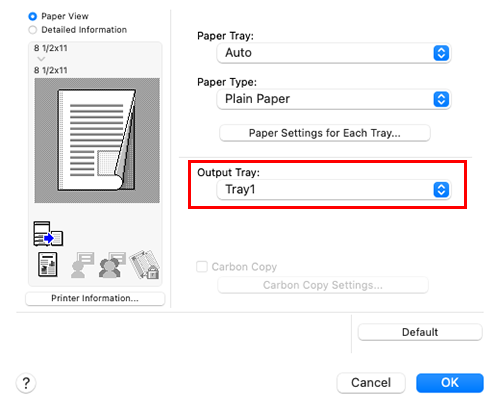
Specifying the output tray ([Output Tray])
In [Output Tray] in [Paper Tray / Output Tray], select the tray to which printed sheets are output.
 in the upper-right of a page, it turns into
  and is registered as a bookmark.