
Selecting functions to be arranged in the main menu
To display the main menu, tap [Menu] on the Control Panel. In the main menu, shortcut keys can be arranged to which you have assigned desired functions.
The main menu can be expanded to triple-screen, and you can freely select up to 25 shortcut keys according to your operating environment.
-
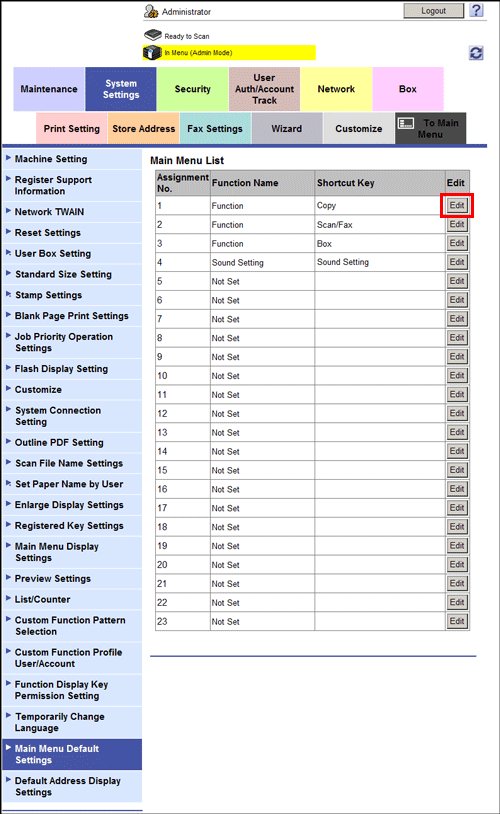
In the administrator mode, select [System Settings] - [Main Menu Default Settings] to select [Assignment No.] for the main menu key arranging shortcut keys, then click [Edit].
-
[Assignment No.] 1 to 11 are assigned to the first screen of the main menu. These keys should be assigned to frequently used functions.
-
-
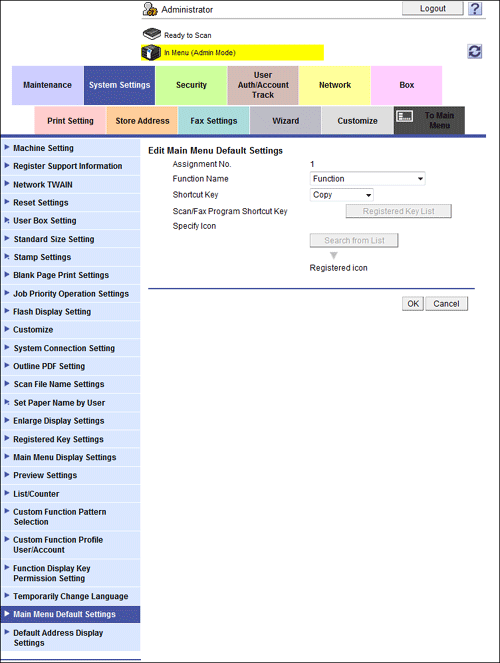
Select a function to be assigned to a shortcut key.
Settings
Description
[Function Name]
Select a category of function to be assigned to a shortcut key.
-
[Function]: Create a shortcut key to the main screen such as Copy mode or Fax/Scan mode.
-
[Copy Function Settings]: Create a shortcut key to the setting screen for copy function.
-
[Scan/Fax Function Settings]: Create a shortcut key to the setting screen for fax/scan function.
-
[System User Box]: Create a shortcut key to the System User Box.
-
[Copy Program]: Create a shortcut key to a copy program. This category can be selected when a copy program is registered on this machine.
-
[Scan/Fax Program]: Create a shortcut key to a fax/scan program. This category can be selected when a fax/scan program is registered on this machine.
-
[Registered Application]: Create a shortcut key to the registration application.
-
[Sound Setting]: Create a shortcut key to [Sound Setting] of [Accessibility].
-
[Not Set]: Do not create any shortcut key.
[Shortcut Key]
Select a function to be assigned to a shortcut key corresponding to the category selected in [Function Name].
[Scan/Fax Program Shortcut Key]
Select a program to be displayed from the list when a shortcut key to a scan/fax program is created.
[Specify Icon]
Select an icon to be displayed on the main menu, if necessary, when a shortcut key is created for a copy program or fax/scan program.
-

-
If the OpenAPI application is registered on this machine, you can arrange keys for the registered applications or registered application groups in the main menu. For details, contact your service representative.