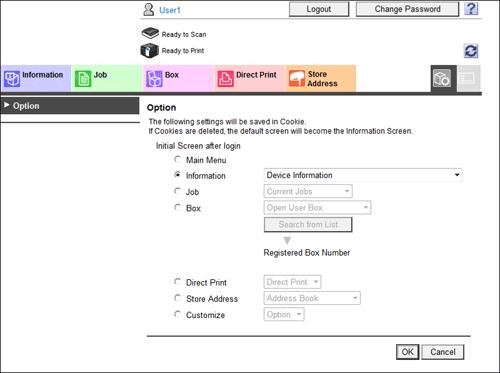
Each mode in the user mode
[Information]
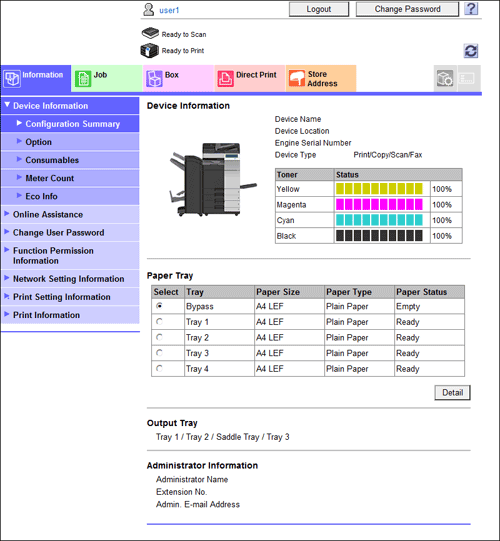
Enables you to confirm the information on the system configuration and settings of this machine.
|
Menu |
Description |
|---|---|
|
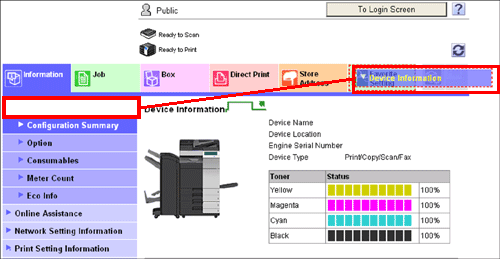
[Device Information] |
Enables you to check the components, options, consumables, meter counts, and eco information of this machine. |
|
[Online Assistance] |
Enables you to check the online assistance about this product. |
|
[Change User Password] |
Changes the password of the login user. |
|
[Synchronize User Authentication & Account Track] |
Enables the login user to change the settings for synchronizing your own user authentication and account track. |
|
[Function Permission Information] |
Enables you to check the function permission information about the user or account. |
|
[Network Setting Information] |
Enables you to check the network settings of this machine. |
|
[Print Setting Information] |
Enables you to confirm the information on the settings for the printer function of this machine. |
|
[Print Information] |
Prints font or configuration information. |
[Job]
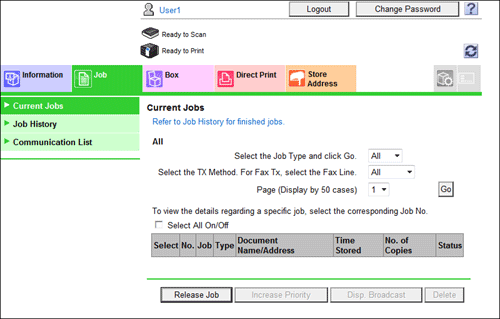
Enables you to check the job currently being performed and the job log.
|
Menu |
Description |
|---|---|
|
[Current Jobs] |
Enables you to check the job currently being performed and the job to be performed. Also, it enables you to instruct to preferentially execute a queued print job or execute a print job for which the proof print function is specified through the printer driver. If logged in as a registered user, login user jobs can also be operated. |
|
[Job History] |
Enables you to check the log of jobs processed on this machine. |
|
[Communication List] |
Enables you to confirm the list of results of scan transmission, fax transmission, and fax reception. |
[Box]
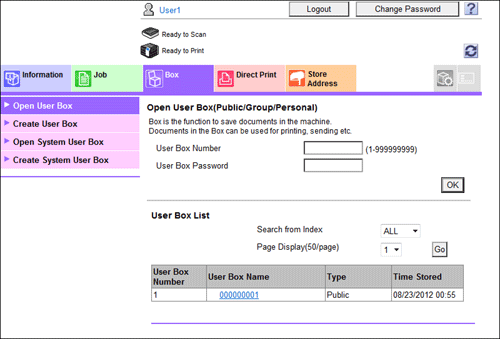
Enables you to create a user box on this machine, print a file from the user box, and send a file.
|
Menu |
Description |
|---|---|
|
[Open User Box] |
Enables you to open a Public, Personal, or Group User Box, print, send, or download a file saved in the User Box, and change the setting of the User Box. For details on how to use a file in a User Box, refer to Here. |
|
[Create User Box] |
Enables to create a new User Box. |
|
[Open System User Box] |
Opens the System User Box (Bulletin Board, Polling TX, Memory RX, or Relay User Box) to enable you to use a file saved in the User Box or change the settings of the User Box. This item is available when the optional Fax Kit is installed. |
|
[Create System User Box] |
Allows you to create a new Bulletin Board User Box or Relay User Box. This item is available when the optional Fax Kit is installed. |
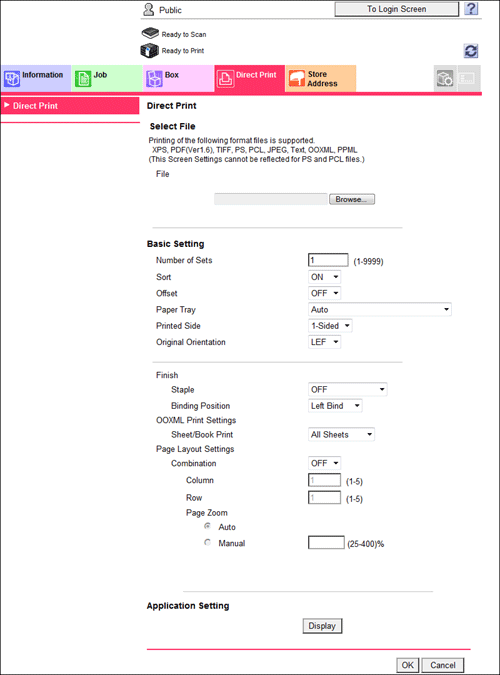
[Direct Print]
Direct Print is a function that enables you to directly send PDF (Ver.1.6), JPEG, TIFF, XPS, PS, PCL, Text, OOXML (.docx/.xlsx/.pptx), and PPML (.ppml/.vdx/.zip) files on your computer to this machine to print them without using the printer driver.
A text file supports only 1-byte characters.

-
For details on the direct print function, refer to Here.

[Store Address]
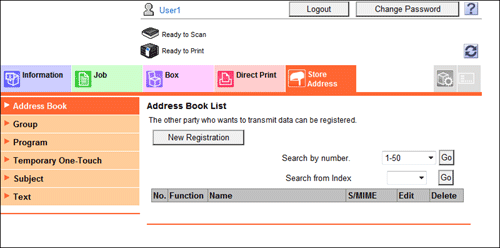
Enables you to register frequently-used destinations and edit the registration content.
|
Menu |
Description |
|---|---|
|
[Address Book] |
Enables you to register frequently-used destinations on this machine. Also, it enables you to confirm or edit the registered content of the destination registered on this machine. |
|
[Group] |
Enables you to register multiple destinations as a group. Also, it enables you to confirm or edit the registered content of the group destination registered on this machine. |
|
[Program] |
Enables you to register a combination of frequently-used option settings as a recall key (program). Also, it enables you to confirm or edit the registered content of the program registered on this machine. |
|
[Temporary One-Touch] |
Enables you to register a program used on a temporary basis. A temporary one-touch destination is deleted once data is sent to the registered destination or when the machine is turned OFF. |
|
[Subject] |
Registers subjects when sending E-mails. |
|
[Text] |
Registers body messages when sending E-mails. |
[Favorite Setting]
Collectively displays frequently used functions as a single tab.
[Favorite Setting] is displayed only when you log in the flash view.
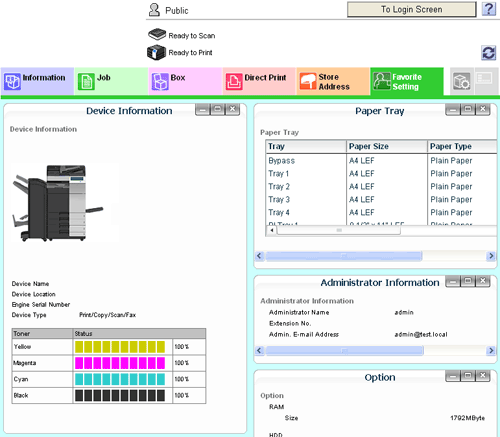
To register a function as [Favorite Setting], drag and drop its menu into the [Favorite Setting] tab.

-
This function is not available when Google Chrome is used as the Web browser.
[Customize]
Enables you to select a screen to be displayed after logging in to the user mode.