User's Guide

Change Universal Print Settings
Change universal print settings.
Select a target MFP name from the MFP list, then click [Change Ubiquitous Print Settings].
If an MFP with the lock icon displayed is selected, the authentication information entry window is displayed. Enter authentication information.
Change universal print settings, enter the MFP administrator password and the OpenAPI user name and password in [Login Settings], then click [OK].
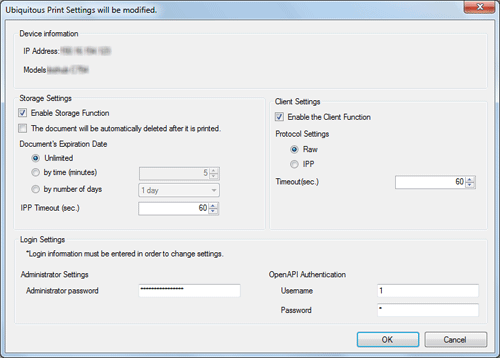
When not using the user name and password for OpenAPI authentication, only enter the administrator password.
Universal print settings are changed.
Click [OK].