
Specifying the default PCL print settings
Configure the PCL settings. Specify the default values for PCL symbol set.
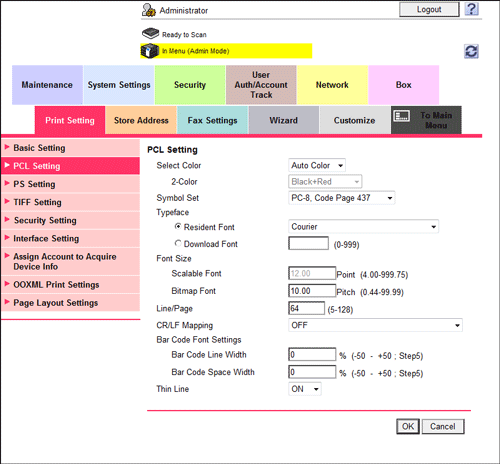
In the administrator mode, select [Print Setting] - [PCL Setting], then configure the following settings.
Settings | Description |
|---|---|
[Select Color] | Select colors for printing.
[Auto Color] is specified by default. |
[Symbol Set] | Select the font symbol set to be used. [PC-8, Code Page 437] is specified by default. |
[Typeface] | Select Resident Font or Download Font to specify the font to be used.
[Courier] is specified by default. |
[Font Size] | Specify the default font size value.
|
[Line/Page] | Enter the number of lines of text data to be printed on one page. [64] is specified by default. |
[CR/LF Mapping] | Select whether to replace the line feed codes when printing text data. When you want to replace the line feed codes, select the replacement method. [OFF] is specified by default. |
[Bar Code Font Settings] | Configure settings for the bar code font.
This option is displayed when the optional Upgrade Kit UK-204 and i-Option LK-106 are installed on this machine. |
[Thin Line] | Select this option to prevent thin lines from disappearing in reduced-size printing. This is effective for thin lines such as table borders created in Excel, but not for thin lines used in illustrations. [ON] is specified by default. |