User's Guide

Main Menu
Displaying Main Menu
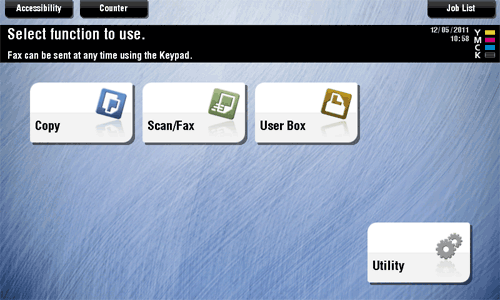
Press the Menu key on the Control Panel to display the main menu. You can customize the keys to be displayed on the main menu freely to suit your requirements.
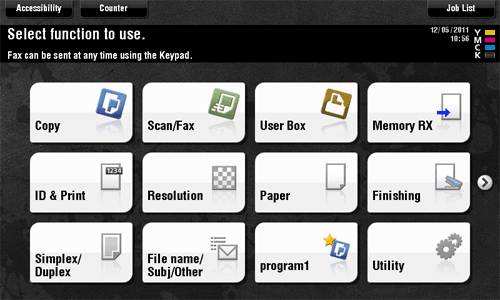
The main menu can be extended to two screens as necessary. It can show 12 shortcut keys in each screen, and up to 24 shortcut keys in two screens. Any function can be assigned to 23 shortcut keys, excluding the fixed function, [Utility].
If shortcut keys of frequently-used functions are arranged on the main menu, it helps you quickly access a target function.
Furthermore, the background of the main menu can be changed according to your preference.

| No. | Name | Description |
|---|---|---|
1 | Main menu keys | Display shortcut keys assigned to any function. Shortcut keys can be customized freely to suit your requirements. By default, [Copy], [Scan/Fax], [Box], and [Utility] are arranged on the main menu. ([Utility] is fixed.) |
2 | [Accessibility] | Press this button to adjust a Touch Panel pressing position, change keying sounds, and configure the operating environment of the Control Panel.
|
3 | [Counter] | Press this button to display the total number of pages printed on this machine on a function or color basis.
|
4 | [Job List] | Press this button to display current or standby jobs. If necessary, you can view job logs or print a communication report.
|
5 | [Utility] | Press this button to configure settings of this machine or view the use status of this machine.
|
Selecting functions to be arranged on the main menu (for the administrator)
- Tap [Utility] - [Administrator Settings] - [System Settings] - [Custom Display Settings] - [Main Menu Default Settings].
- Select a main menu key number to be assigned to a shortcut key.
- [Main Menu Key 1] to [Main Menu Key 11] are assigned to the first screen of the main menu. It is useful that these keys are assigned to commonly-used functions.
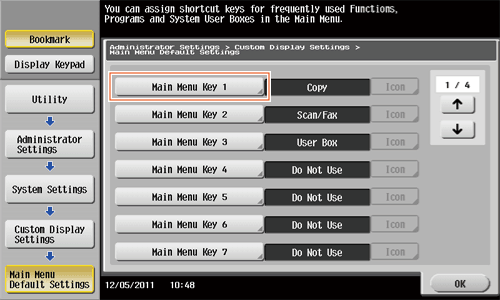
- [Main Menu Key 1] to [Main Menu Key 11] are assigned to the first screen of the main menu. It is useful that these keys are assigned to commonly-used functions.
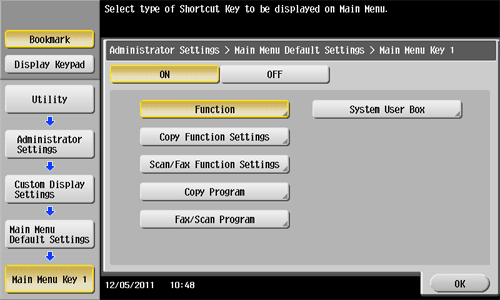
- Tap [ON], select a function to be assigned to a shortcut key, then tap [OK].
- Tap [Copy Program] or [Fax/Scan Program], and select Programs; you can arrange the programs registered on this machine on the main menu.
- If Programs is selected, tap [Icon] in the screen shown in step 2, and select an icon to be displayed on the main menu.
The shortcut keys of the selected functions are arranged in the main menu.
Changing the theme of the main menu (for the administrator)
- Tap [Utility] - [Administrator Settings] - [System Settings] - [Custom Display Settings] - [Main Menu Display Settings].
- Select a desired theme, then tap [OK].
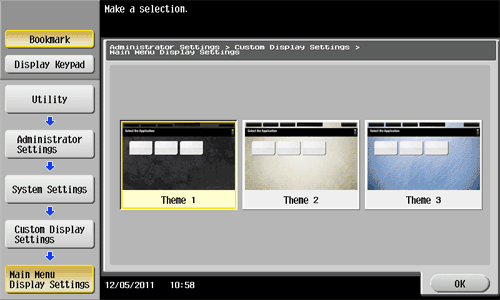
This changes the theme of the main menu to the selected one.