Operating the Currently Displayed Page
Adding a favorite (for the administrator)
Add the currently displayed page as a favorite to this machine.
To add a favorite, you need to enter the administrator password of this machine.
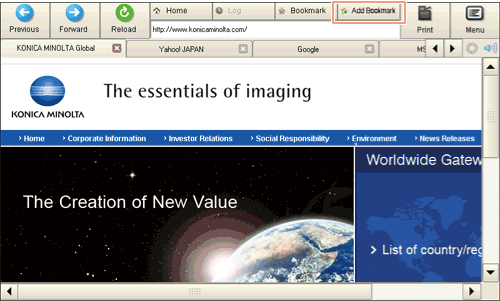
Display a page to be added as a favorite, then tap [Add Bookmark].
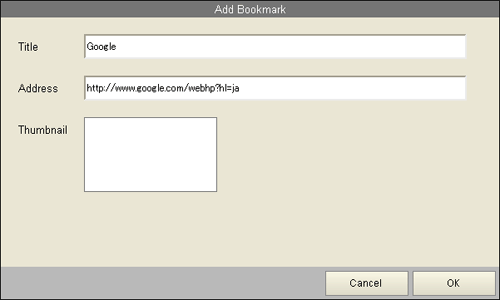
When necessary, change a page title, then tap [OK].
Tips
- This machine can store up to 100 favorites
- If this machine is associated with My Panel Manager, you can add a favorite without entering the administrator password. Up to 20 favorites can be stored on the server.
Printing the currently displayed page
Print the currently displayed page through this machine.
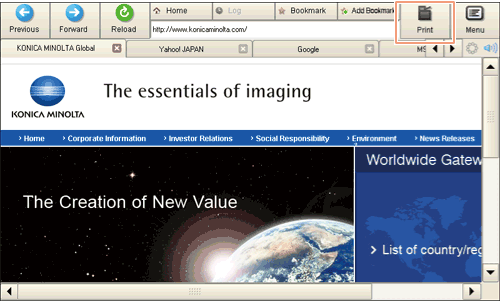
Tapping [Print] on the toolbar displays the print screen.
Configure print settings as required, then tap [Start] or press the Start key to start printing the currently displayed page.
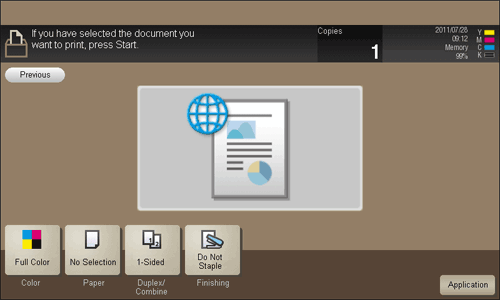
The print screen allows you to configure the following print settings.
| Settings | Description |
|---|---|
[Color] | Select a color mode to print. |
[Paper] | Select the size of paper for printing. |
[Duplex/Combine] | Select whether to print one side or both sides of sheets of paper. |
[Finishing] | Configure settings for collating, grouping, offsetting. stapling, hole punching, folding, or binding. The available functions vary depending on which optional units are installed on this machine. |
Tips
- If you attempt to print a page that consumes a lot of memory or a JPEG image, a loading error may occur, resulting in a printing failure.
Enlarging or reducing the currently displayed page
Select [Menu] - [Display] on the toolbar to enlarge or reduce a page.
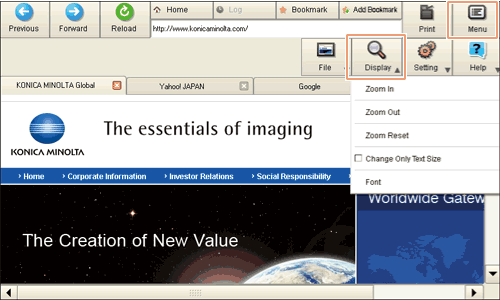
| Settings | Description |
|---|---|
[Zoom In] | Enlarges a page. |
[Zoom Out] | Reduces a page. |
[Zoom Reset] | Returns the enlargement or reduction ratio of a page to full size. |
[Change Only Text Size] | Select this check box to enlarge or reduce only the text size when [Zoom In] or [Zoom Out] is enabled. |
[Font] | Select a required font when displaying contents with no font specified. To use this function, you need to enter the administrator password of this machine. |
Operating a window
Select [Menu] - [File] on the toolbar to operate tabs.
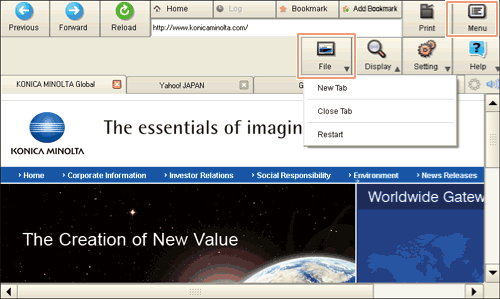
| Settings | Description |
|---|---|
[New Tab] | Opens a new tab. |
[Close Tab] | Closes the currently displayed tab. |
[Restart] | Restart the Web browser. |
Adjusting the sound to replay content
If a Local Interface Kit is installed on this machine, you can hear a sound of the currently displayed Web page or flash content through speakers.
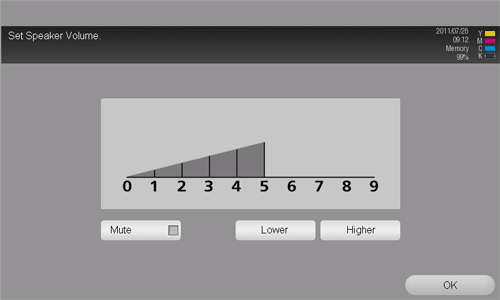
Tapping the speaker icon on the Web browser page allows you to adjust the speaker volume.
- To increase the volume one level, tap [Higher], or press the # key on the Control Panel.
- To reduce the volume one level, tap [Lower], or press the * key on the Control Panel.
- To put the speaker on mute, select the [Mute] check box.