User's Guide

Restricting the Use of Web Browser
Restricting the use of Web browser
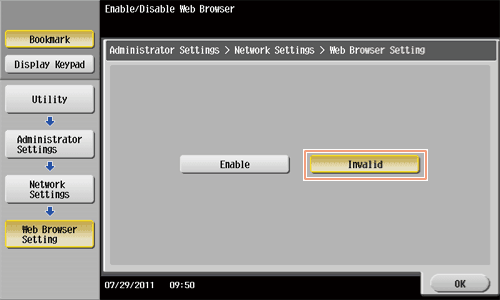
Invalidate the Web browser without disabling the Web browser function, for example, when restricting the use of the Web browser.
- Tap [Utility] - [Administrator Settings] - [Network Settings] - [Web Browser Setting].
- Select [Invalid], then tap [OK].
Restricting the use of Web browser for each user
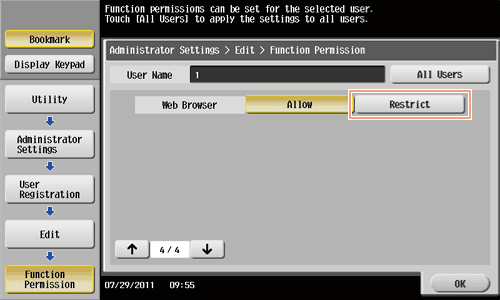
If user authentication is installed on this machine, you can restrict use of the Web browser for each user.
- Tap [Utility] - [Administrator Settings] - [User Authentication/Account Track] - [User Authentication Settings] - [User Registration].
- Select a user for whom you want to restrict the use of the Web browser, then tap [Edit] - [Function Permission].
- When restricting the use the Web browser for public users, tap [
 ], and select [Public].
- When restricting the use the Web browser for public users, tap [
- Set [Web Browser] to [Restrict], then tap [OK].
Restricting the use of local contents
If the IWS (Internal Web Server) function is enabled on this machine, you can transfer Web page contents (local contents) to the hard disk of this machine, and access them via the Web browser of this machine. You can also use static content and script-base dynamic content to fit your environment.
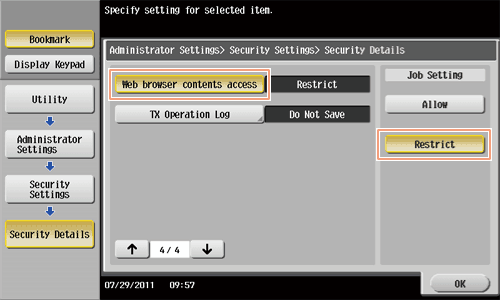
When necessary, the administrator of this machine can configure settings to prevent local contents stored on the hard disk of this machine from being accessed via the Web browser of this machine.
- For details on the IWS function and local contents, contact your service representative.
- Tap [Utility] - [Administrator Settings] - [Security Settings] - [Security Details].
- Set [Web browser contents access] to [Restrict], then tap [OK].