User's Guide

Setting Up the Operating Environment
Tap [Menu] - [Setting] on the toolbar to configure the detailed settings of the Web browser. To display [Scan Settings], you need to enter the administrator password of this machine.
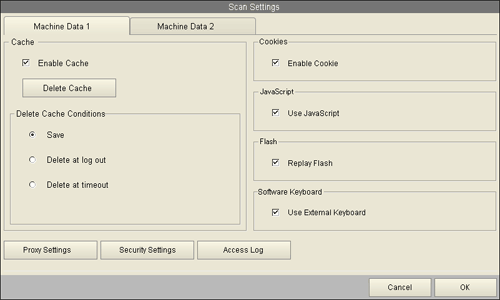
[Machine Data 1] tab
| Settings | Description |
|---|---|
[Cache] | Configure the cache function of the Web browser as necessary.
|
[Cookies] | Select the [Enable Cookie] check box to use cookie data. |
[JavaScript] | Select the [Use JavaScript] check box to enable JavaScript embedded in a page. |
[Flash] | Select the [Replay Flash] check box to replay flash content embedded in a page. |
[Software Keyboard] | Select this check box to enter text using the keyboard displayed on the screen even when an external keyboard is installed on this machine. |
[Proxy Settings] | Press this button to configure settings to use a proxy server. To use a proxy server, enter its address and port number. If proxy authentication is required, enter the appropriate ID and password. |
[Security Settings] | Press this button to enable SSL/TLS. This function also displays a root or CA certificate. |
[Access Log] | Press this button to check all users' access logs. Each access log shows a user number, user name, URL of an accessed page, and access date and time. |
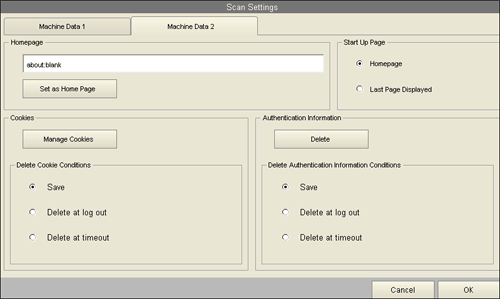
[Machine Data 2] tab
| Settings | Description |
|---|---|
[Homepage] | Enter a URL of a page to be registered as a home page. Tapping [Set as Home Page] registers the currently displayed page as a home page. |
[Start Up Page] | Select a page to be displayed when the Web browser has been started. |
[Cookies] | Configure cookie settings for Web browser.
|
[Authentication Information] | Configure authentication information such as a password for the Web browser.
|
Tips
- If this machine is associated with My Panel Manager, the user can configure the following settings.
- [Homepage]
- [Start Up Page]
- [Cookies] setting
- [Authentication Information] setting