User's Guide

Registering an SMB Program
A program can be registered or edited using Web Connection. Although character input is a difficult process using the Touch Panel, it can be carried out easily if you use the computer.
A combination of address information and the fax/scan transmission option settings can be registered in a program.
The following describes the SMB program.
In the administrator mode, select [Store Address] - [Program] - [Registration] - [SMB], then click [OK] to configure the following settings.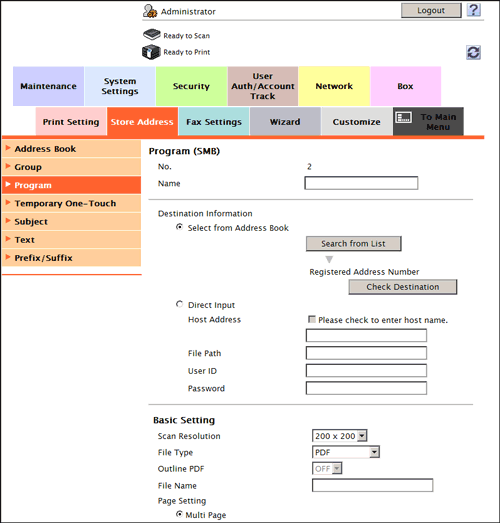
| Settings | Description |
|---|---|
[Name] | Enter the program name (using up to 24 characters). Assign a name that helps you easily identify the program. |
[Destination Information] | Click [Search from List], and select a destination SMB from the list. Click [Check Destination] to check registered address books. If you wish to manually enter a destination SMB, select [Direct Input] and enter the SMB.
Only one destination can be specified. To specify the host name, use uppercase letters. |
[Basic Setting]/[Application Setting] | Configure the Scan option settings. For details, refer to Here. |
[Limiting Access to Destinations] | Limit access to this destination, if necessary. For details, refer to Here. |