User's Guide

Registering a WebDAV Destination
A WebDAV destination can be registered or edited using Web Connection. Although character input is a difficult process using the Touch Panel, it can be carried out easily if you use the computer.
In the administrator mode, select [Store Address] - [Address Book] - [New Registration] - [WebDAV], then click [OK] to configure the following settings.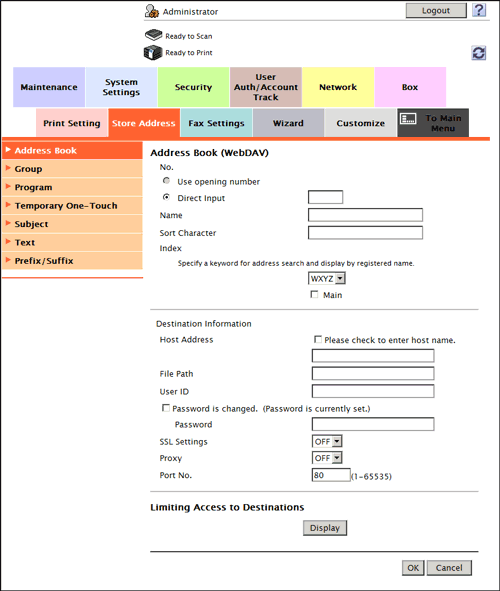
| Settings | Description |
|---|---|
[No.] | Destination registration number. [Use opening number] is automatically registered from a lower number that is not used. When specifying a number, select [Direct Input], and enter a value between 1 and 2000. |
[Name] | Enter the destination name using up to 24 characters. Assign a name that helps you easily identify the destination. |
[Index] | Select a corresponding character so that the destination can be index searched by registration name.
|
[Host Address] | Enter the host name or IP address of the destination WebDAV server (using up to 253 characters).
|
[File Path] | Enter the name of a destination folder in the WebDAV server specified in [Host Address] (using up to 142 characters).
|
[User ID] | Enter the name of a user who is authorized to access the folder specified in [File Path] (using up to 64 characters). |
[Password] | Enter the password of the user you entered into [User ID] (using up to 64 characters, excluding"). |
[SSL Settings] | When SSL is used in your environment, select [ON]. [OFF] is specified by default. |
[Proxy] | When a proxy server is used in your environment, select [ON]. [OFF] is specified by default. |
[Port No.] | If necessary, change the port number. Normally, you can use the original port number. [80] is specified by default. |
[Limiting Access to Destinations] | Limit access to this destination, if necessary. For details, refer to Here. |