User's Guide

To display:
- [Copy]
- [Application]
- [Others]
- [Card Shot]
- [Others]
- [Application]
When you want to copy cards, you can arrange the front and back sides of the card on the same side of a single page and print them onto one sheet.
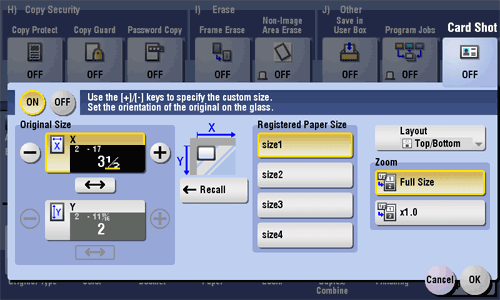
| Settings | Description |
|---|---|
[ON]/[OFF] | Select [ON] to specify Card Shot. |
[Original Size] | Specify the size of the card to copy by tapping [+]/[-] for the inch area, or by tapping [+]/[-] or pressing the Keypad for the centimeter area. From the [Registered Paper Size], you can recall a size previously stored and specify the size. |
[Layout] | Select the layout for arranging the front side and back side of the card on the paper from [Top/Bottom], [Left/Right (Top Half)], and [Left/Right]. |
[Zoom] | Select a zoom ratio for copying.
|
Reference
- For details about the operation procedure of [Card Shot], refer to Here.