
Configuring LK-114_ManagerPort Settings.
Configure LK-114_ManagerPort settings. Configuring LK-114_ManagerPort executes print jobs via LK-114_ManagerPort by selecting the MFP with LK-114_ManagerPort specified when printing.
Check that LK-114_ManagerPort is installed.
To configure LK-114_ManagerPort, specify the IP address and port number of the MFP to which print jobs are to be sent. If there is a device definition file, ask the administrator for the file name. Otherwise, ask the administrator for the IP address and port number of the destination. For details on the device definition file, refer to Here.
Display the LK-114_ManagerPort setting window.
For LK-114_InstallTool, click [Activate "LK-114_ManagerPort Settings"] on the LK-114_InstallTool installation target selection window.
If the device definition file selection window appears, select the target device definition file.
In Windows 8.1, click [
 ] on the Start window, then click [KONICA MINOLTA] - [LK-114_ManagerPort] - [LK-114_ManagerPort Settings].
In Windows 8, right-click on the Start window, then click [All apps] - [KONICA MINOLTA] - [LK-114_ManagerPort] - [LK-114_ManagerPort Settings].
In Windows 7/Vista, open the Start menu, then click [All Programs] (or [Programs]) - [KONICA MINOLTA] - [LK-114_ManagerPort] - [LK-114_ManagerPort Settings].
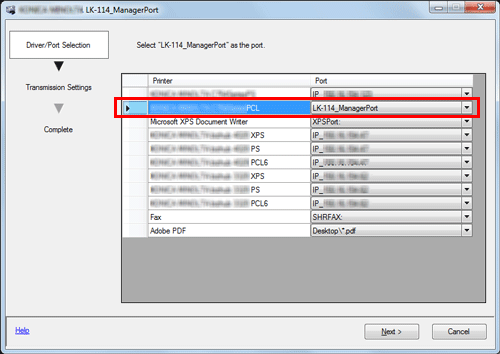
Change the port of the target MFP to [LK-114_ManagerPort], then click [Next].
If the printer driver is installed using LK-114_InstallTool, check that [LK-114_ManagerPort] is selected.
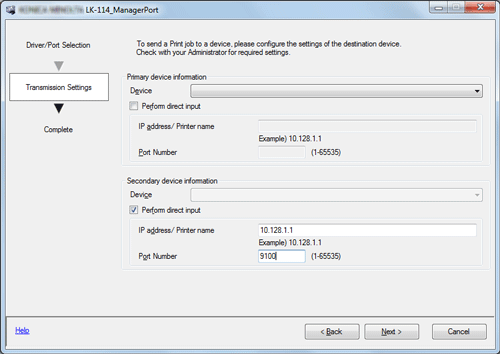
Specify the destination where to send print jobs ([Primary device information] or [Secondary device information]), then click [Next].
If there is a device definition file, select a target from the [Device] list. The IP address and port number are displayed automatically.
If there is no device definition file, select the [Perform direct input] check box, then enter the IP address. In [Port Number], enter the print port of the MFP.
In [Secondary device information], enter the appropriate value as necessary.
Specify the MFP that matches the MFP on which you select [LK-114_ManagerPort] on the driver/port selection window in step 2.
Click [Completed].

If you log in to Windows with the Guest account, LK-114_ManagerPort is not available.