
Authenticating with the cloud authentication service when printing
About IdP Authentication
The IdP authentication is a function that authenticates this machine's users using the cloud authentication service (IdP).
If IdP authentication is installed on this machine, you can print from the computer by performing IdP authentication with the printer driver.
Enabling IdP authentication when printing from a computer
To enable IdP authentication, configure the following settings.
Configure settings for printing from a computer using IdP authentication on this machine. For details on the setting procedure, refer to Here.
Make sure that [IdP Authentication Setting] is set to [Enable] or [Enable (Give priority IdP authentication)] in [Device Option] on the [Configure] tab of the printer driver (default: [Disable]). For details on [Device Option], refer to Here.
To use IdP authentication, WebView2 Runtime must be installed. It can be installed using one of the following methods. If WebView2 Runtime cannot be installed, contact your system administrator.
Launch the installer for WebView2 Runtime from [WebView2 installation] of the driver installer.
Follow the messages displayed at IdP authentication to access the download page.
(Messages are displayed when WebView2 Runtime is not installed.)
If WebView2 Runtime is not installed, authentication via Internet Explorer will be performed, so you need to make the following settings. For details on the setting method, refer to the support manual.
Register the authentication site in Trusted Site of Internet Explorer.
Change [Let Internet Explorer open sites in Microsoft Edge] of Microsoft Edge to [Never].
Disable [Display intranet sites in Compatibility View] in [Compatibility View Settings] of Internet Explorer (if there is a site that requires compatibility display, it must be specified individually).
Printing from a computer using IdP authentication
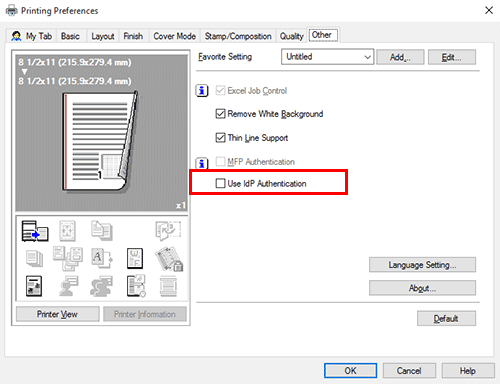
In the [Other] tab, select the [Use IdP Authentication] check box.
This check box is automatically selected if [IdP Authentication Setting] is set to [Enable (Give priorty IdP authentication)] in [Device Option] on the [Configure] tab of the printer driver.
In the [Basic] tab, click [Authentication/Account Track...].
The Web browser starts, and the IdP authentication screen appears.
Enter your password and other credentials in the authentication screen, and log in.
Execute printing on the [Printing Preferences] screen.